

Creating and managing files efficiently is a core skill for anyone working in a Linux environment. Developers, system administrators, and students alike often rely on the terminal for speed and precision. When combined with Visual Studio Code (VS Code), one of the most popular code editors available today, the Linux terminal becomes a powerful gateway to seamless development workflows. Understanding how to create a file in VS Code directly from the Linux terminal can significantly improve productivity and streamline project management.
TL;DR: To create a file in VS Code from the Linux terminal, first ensure VS Code is installed and accessible through the code command. Navigate to the desired directory using cd, create a file using commands like touch, and open it with code filename. Alternatively, create and open the file in one step by running code filename directly. This method enhances speed, organization, and workflow efficiency.
This guide explains multiple methods for creating files in VS Code using the Linux terminal. It also explores setup requirements, helpful command variations, and troubleshooting tips for common issues.
Understanding the Basics
The Linux terminal is a command-line interface that allows users to interact with the operating system through text commands. VS Code, on the other hand, is a graphical code editor with rich features like syntax highlighting, debugging tools, and extensions.
By connecting the terminal with VS Code via the code command, users can open files and directories directly from the command line. This eliminates the need to manually navigate through file explorers.
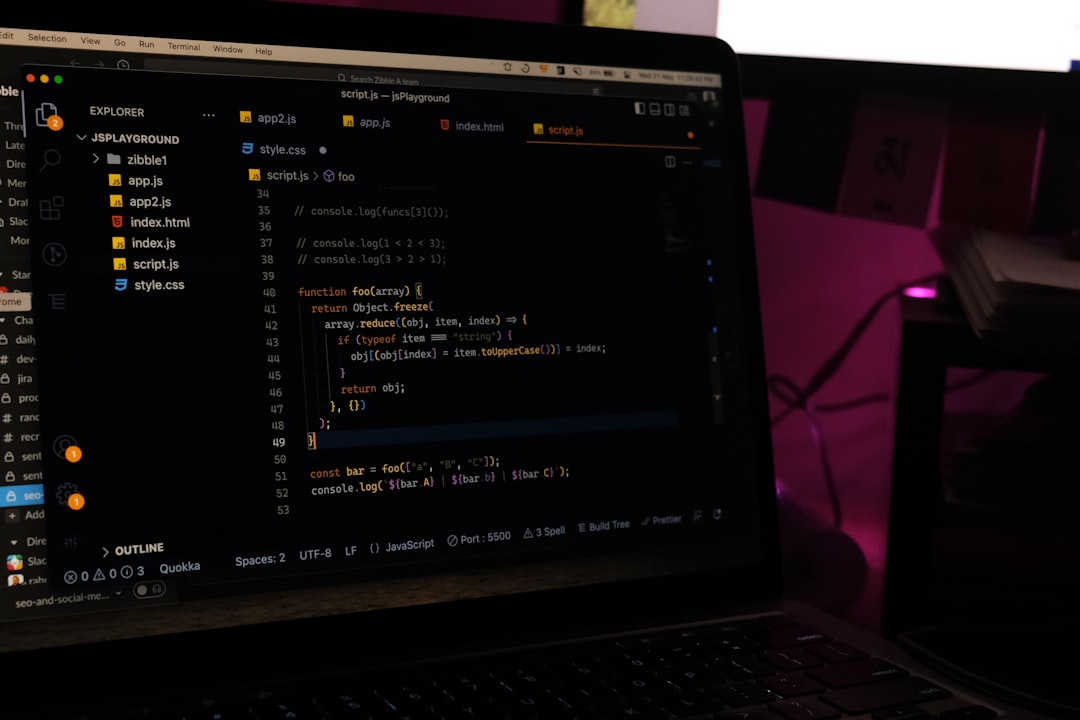
Step 1: Install and Configure VS Code
Before creating files from the terminal, VS Code must be properly installed. Most Linux distributions allow installation using package managers such as:
- Debian/Ubuntu: sudo apt install code
- Fedora: sudo dnf install code
- Arch Linux: sudo pacman -S code
After installation, the code command may need to be enabled in the system PATH. In many cases, this happens automatically. If not, users can open VS Code, press Ctrl + Shift + P, and select:
Shell Command: Install ‘code’ command in PATH
This ensures the terminal recognizes the code command globally.
Step 2: Navigate to the Target Directory
Before creating a file, one must move to the appropriate directory. The cd (change directory) command is used for this purpose.
cd /path/to/your/projectTo check the current directory, the following command is helpful:
pwdTo list the files inside a directory:
lsThis step ensures the new file is created exactly where it is needed.
Step 3: Create a File Using Terminal Commands
There are several ways to create a file in Linux before opening it in VS Code.
Method 1: Using the touch Command
The simplest way to create an empty file is with touch:
touch example.jsThis command instantly creates an empty file named example.js in the current directory.
Method 2: Using echo
If the user wants to create a file and insert initial content:
echo "console.log('Hello World');" > example.jsThis command creates the file and writes a line of code into it.
Method 3: Using nano or vim
Terminal-based editors such as nano or vim can also create files:
nano example.jsAfter saving and exiting, the file becomes available in the directory.
Step 4: Open the File in VS Code
Once the file exists, opening it in VS Code is straightforward:
code example.jsThis command launches VS Code and loads the specified file.
If VS Code is already open, the file will open in a new tab within the existing window.

Creating and Opening a File in One Step
An efficient alternative skips the separate file creation step. Simply typing:
code newfile.pyIf newfile.py does not already exist, VS Code automatically creates it when it opens. Once saved, the file will be permanently stored in the directory.
This approach is ideal for rapid development workflows.
Opening an Entire Directory
Often, developers prefer opening an entire project folder rather than a single file.
code .The period represents the current directory. This command launches VS Code with the full folder structure visible in the sidebar.
To open a specific folder:
code /path/to/projectThis method is especially helpful for larger projects containing multiple files.
Useful Variations of the Code Command
The code command provides additional options:
- code -n filename – Opens the file in a new window.
- code -r filename – Reuses the current window.
- code –verbose – Displays debugging information.
These options provide flexibility depending on the user’s workflow preferences.
Troubleshooting Common Issues
Command Not Found Error
If the terminal displays code: command not found, it usually means the command is not in the system PATH. Reinstalling the shell command from within VS Code typically resolves this problem.
Permission Errors
If the user lacks permission to create files in a certain directory, the terminal may return a denied message. In such cases:
- Switch to a permitted directory such as the home folder.
- Use sudo cautiously for administrative directories.
File Not Appearing
If a created file does not appear in VS Code:
- Refresh the file explorer.
- Confirm the correct directory using pwd.
- Check hidden files with ls -a.
Why Use the Terminal Instead of the GUI?
Some may wonder why creating files via the terminal is beneficial when VS Code offers a graphical interface. There are several compelling reasons:
- Speed: Commands execute faster than navigating menus.
- Automation: Scripts can generate multiple files instantly.
- Remote Work: Terminal access is essential when working on remote servers via SSH.
- Precision: Commands reduce accidental misplacement of files.

For developers working in cloud environments or headless servers, mastering this workflow is particularly valuable.
Best Practices for Efficient File Creation
- Use clear and descriptive file names.
- Organize files within structured directories.
- Open entire projects rather than isolated files when possible.
- Combine terminal commands for batch creation (e.g., loops).
- Regularly verify the current directory to avoid misplaced files.
These habits contribute to cleaner project management and fewer errors.
Conclusion
Creating a file in VS Code from the Linux terminal is a simple yet powerful skill. By combining directory navigation commands with file creation utilities and the code launcher, users gain a streamlined development workflow. Whether working locally or remotely, this approach saves time and enhances control over file management.
From beginners learning Linux basics to experienced developers managing complex projects, understanding how to bridge the terminal and VS Code is a fundamental productivity enhancer.
Frequently Asked Questions (FAQ)
-
1. How does one check if VS Code is installed on Linux?
By running code –version in the terminal. If a version number appears, VS Code is installed correctly. -
2. Can a file be created and opened without using the touch command?
Yes. Running code filename automatically creates the file if it does not already exist. -
3. How can multiple files be created at once?
Using the touch command with multiple filenames:
touch file1.js file2.js file3.js -
4. Is it possible to open VS Code from any directory?
Yes, as long as the code command is added to the system PATH. -
5. What does “code .” mean?
It opens the current directory in VS Code, displaying all files and subdirectories. -
6. Does this method work on remote Linux servers?
Yes, particularly when using SSH and VS Code’s remote extensions, allowing direct editing of server files. -
7. What should be done if VS Code opens slowly from the terminal?
System resources should be checked, and unnecessary extensions may be disabled to improve performance.