
Ever wondered what motherboard you have in your computer? Maybe you’re upgrading parts, checking compatibility, or just feeling nosy. Good news — finding out is easier than you might think. Let’s dive into a simple guide to help you uncover your system’s hidden identity.
TL;DR
Your motherboard type can be found using built-in Windows tools like Command Prompt or system specs software like CPU-Z. You can also open your case and look directly at the board. A label will usually tell you the make and model. Knowing your motherboard helps with upgrades, driver downloads, and troubleshooting.
Why Should You Care About Your Motherboard?
The motherboard is the heart of your computer. It connects everything: CPU, GPU, RAM, storage, and more. If you’re planning an upgrade, need to buy a new component, or download a driver, you’ll need to know what motherboard you have.
Things like:
- CPU compatibility
- RAM speed and capacity
- Number of M.2 SSD slots
- BIOS updates
…all depend on your motherboard’s model and make.
Method 1: Use the Command Prompt
This is probably the quickest way. No scary tools or downloads required.
- Press Windows + R to open the Run dialog.
- Type cmd and press Enter.
- In the black window that pops up, type:
wmic baseboard get product,manufacturer
You should see something like:
Manufacturer    Product
ASUS            PRIME B450M-A
Bingo! You now know both the brand (ASUS) and model (PRIME B450M-A).
Method 2: Use System Information
Windows has another built-in tool up its sleeve.
- Press Windows + R.
- Type msinfo32 and hit Enter.
This opens a window full of juicy details about your system.
Look for something like:
- BaseBoard Manufacturer – e.g., Gigabyte
- BaseBoard Product – e.g., B550 AORUS ELITE
- BaseBoard Version
And just like that, you’ve got your motherboard ID.
Method 3: Check the Motherboard Physically
Feeling adventurous? Let’s pop that case open!
Warning: Turn off the computer and unplug it first.
Once inside, look closely at the motherboard. Most will have the brand and model number printed somewhere obvious. It’s usually near the CPU socket, RAM slots, or PCIe slots.
Look for something like:
- “MSI B550M PRO-VDH WIFI”
- “ASRock Z490 Steel Legend”
- “ROG STRIX B650-A GAMING”
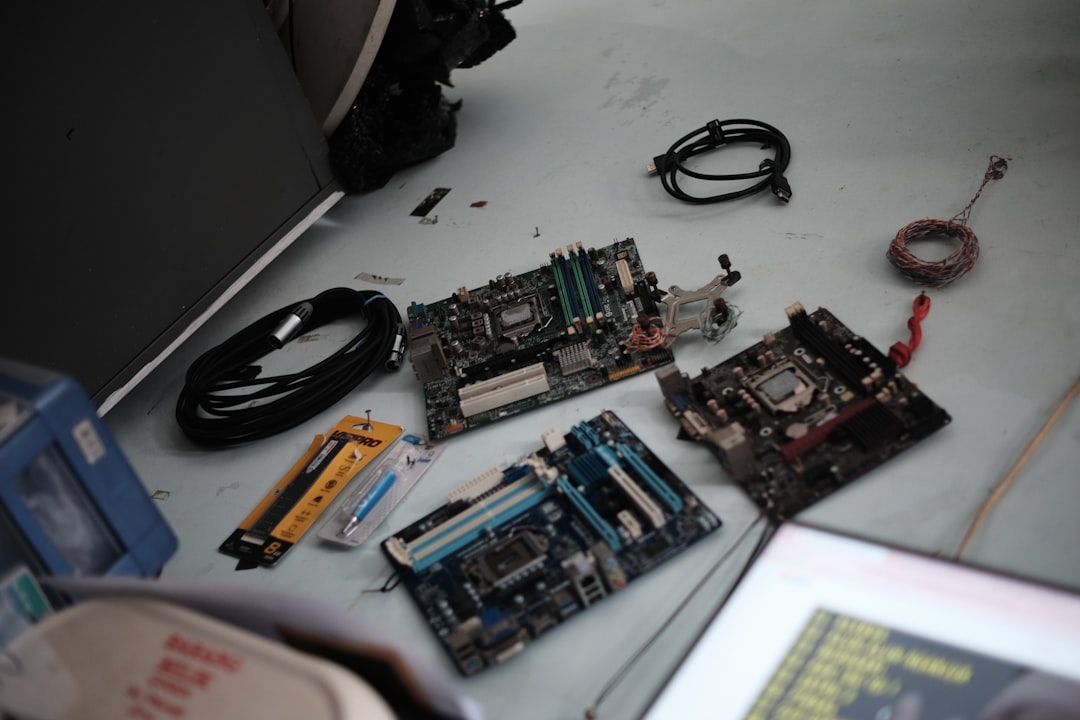
If it’s dusty, gently clean with a can of compressed air or a soft brush.
Method 4: Use Third-Party Software
Still not sure? Want extra details like chipset, BIOS version, and more? Try using a free tool like CPU-Z!
Steps:
- Download CPU-Z from its official website.
- Launch it and click the Mainboard tab.
You’ll see:
- Manufacturer
- Model
- Chipset
- BIOS Version
More than you ever wanted to know about your motherboard!
Method 5: Check the Box or Manual
If you built your PC yourself, you might still have the motherboard’s box or manual lying around. These usually show the exact model and brand loud and proud on the front.
This method is especially handy if the PC is already running and you’re just too comfy to open it up.
Common Motherboard Brands
To make things a bit easier, here are some of the most popular motherboard brands:
- ASUS – Known for their ROG and TUF gaming series.
- MSI – Famous for stylish designs and cool BIOS features.
- Gigabyte – Offers both budget and premium options.
- ASRock – Great value and innovation.
- Intel – Yes, Intel also makes motherboards.
Knowing the brand can make it easier to find compatible parts and drivers.
What to Do With This Info
Now that you know what board you’re rockin’, here’s what you can do with it:
- Search for compatible CPUs and RAM.
- Check how many SSDs and HDDs your motherboard supports.
- Find BIOS or driver updates on the manufacturer’s website.
- Figure out if you can upgrade your GPU or get another PCI card.
Final Tips
Keep a note of your motherboard model somewhere safe. It’ll come in handy when troubleshooting or upgrading. You don’t want to open your PC case every time!
Also, double-check the spelling when Googling the model name. One wrong letter and you might end up looking at a toaster’s specs instead.
Wrapping It All Up
Getting to know your motherboard might sound techy, but it’s actually pretty simple. With just a few clicks — or a brave peek inside your PC — you’ll have all the info you need. No need to call tech support or become a computer wizard.
Whether you’re upgrading, troubleshooting, or just satisfying curiosity, you’ve now got the tools to check like a pro.
Happy computing!