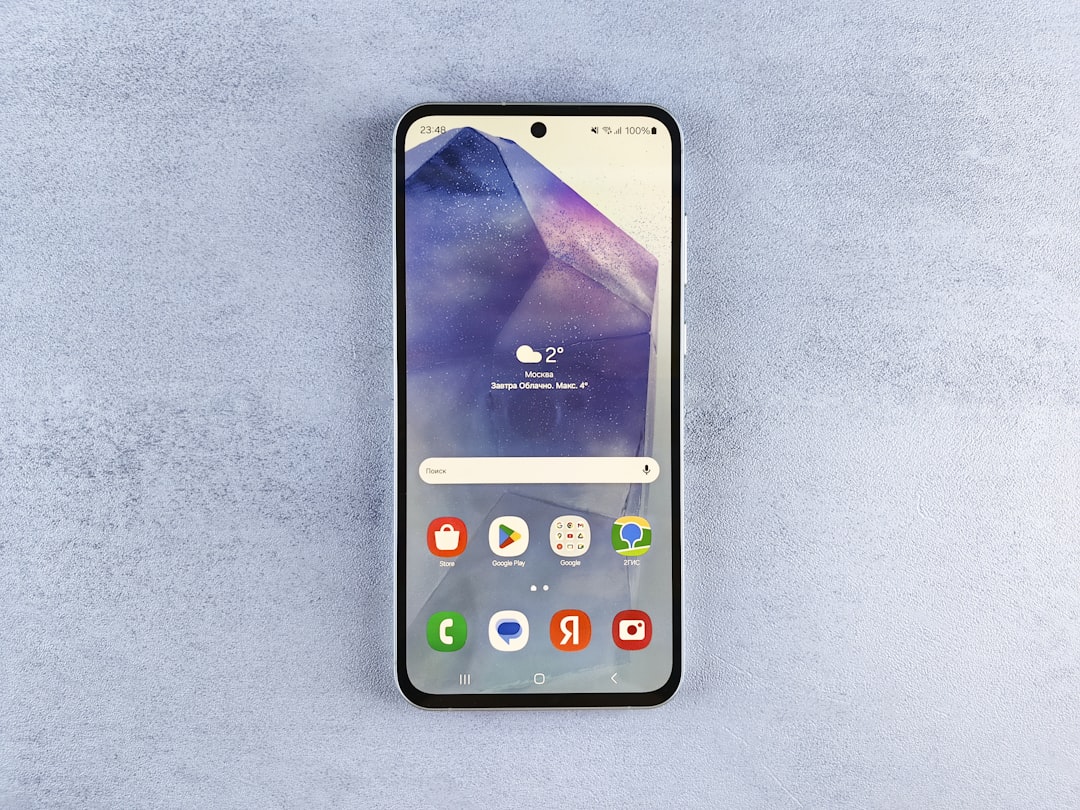

Mobile phones have evolved into powerful tools capable of performing nearly every computing task imaginable. One often overlooked, yet highly useful feature is the clipboard—the temporary storage location for copied text, links, and other data. While copying and pasting is routine, accessing your clipboard history isn’t quite as straightforward. This article provides in-depth, reliable guidance on how to check clipboard history on both Android and iOS devices.
TL;DR
Accessing clipboard history on mobile mainly depends on the operating system and device manufacturer. Android users often have clipboard history features built into custom keyboards like Gboard or Samsung Keyboard. iOS, on the other hand, offers limited clipboard access, typically only providing access to the most recent entry. Third-party apps can expand clipboard functionality on both platforms but require certain permissions and caution due to privacy concerns.
Understanding Clipboard Basics on Mobile
The clipboard is a virtual space where your mobile device temporarily holds data you’ve copied or cut. When you copy a URL, a phone number, or a chunk of text, it goes to the clipboard, awaiting your next paste action.
However, it’s important to understand that:
- The clipboard is often erased after a short time or when the device is restarted.
- Most smartphones only remember the most recent clipboard entry unless you use specific tools to store history.
Clipboard history isn’t easily accessible by default in many devices due to privacy and security considerations, which makes understanding your options crucial.
Checking Clipboard History on Android
Android provides more flexibility when it comes to clipboard access, although this varies by the keyboard in use and the phone’s manufacturer.
Method 1: Using Gboard (Google Keyboard)
Many Android devices come with Gboard pre-installed. If you’re using Gboard, follow these steps to check clipboard history:
- Tap into any text field (e.g., a messaging app or browser search bar).
- Bring up the keyboard and tap the clipboard icon on the toolbar above the letters.
- If clipboard is not enabled, you’ll be prompted to turn it on. Once enabled, Gboard begins saving copied items.
- A list of recent copied items will be displayed. Tap any item to paste it directly.
Note: Gboard retains clipboard items for a limited time (about an hour) unless you pin them manually.
Method 2: Using Samsung Keyboard
Samsung devices feature their own keyboard that includes a built-in clipboard feature:
- Open a text field and make sure the Samsung Keyboard is in use.
- Tap the three dots or the clipboard icon above the keyboard to open clipboard history.
- Here, you will see all your recent copied items, along with options to pin or delete them.
Method 3: Using Third-Party Clipboard Managers
If your current keyboard doesn’t support clipboard history, you can consider third-party clipboard management apps. Some trustworthy examples include:
- Clipper: One of the most popular clipboard managers, though it’s no longer actively updated. Useful for older Android versions.
- Clipboard Manager: Offers automatic logging, search capability, and customizable folder organization.
- Clip Stack: Open-source and lightweight, suitable for privacy-conscious users.
Before installing any third-party app, be sure to verify:
- Developer reputation and reviews
- Permission requests (clipboard managers often need accessibility permissions)
- No unnecessary background data collection
Accessing Clipboard History on iOS
Apple’s iOS is more restrictive when it comes to clipboard access for security and privacy reasons. As a result, by default, iOS does not support clipboard history. It only keeps the most recently copied item, and this data is not viewable in a list format like on Android.
Method 1: Using the Native iOS Clipboard (Most Recent Item Only)
If you’ve copied something recently, you can paste it by simply long-pressing in a text field and selecting “Paste.” There’s no built-in way to view older copied items. The clipboard content is automatically overwritten every time you copy something new.
Method 2: Using Third-Party Clipboard Apps for iOS
To get clipboard history, you’ll need to use a third-party application. Some notable options include:
- Paste: A polished and trusted clipboard manager available on iOS and macOS. Ideal for productivity users.
- Copied: A solid choice for managing and organizing copied text and links, with iCloud syncing.
- Anybuffer: More than just a clipboard manager—it works like a digital scratchpad for various content types.
To use these apps effectively, you typically need to:
- Install the clipboard manager from the App Store.
- Grant necessary permissions, often involving accessibility or foreground monitoring.
- Use the share sheet or copy functions inside these apps for tracking.

Security and Privacy Considerations
Clipboard data can be sensitive—think passwords, personal messages, or private URLs. This makes proper handling of clipboard history essential for your privacy.
Here are some best practices to follow:
- Use trusted apps with transparent privacy policies.
- Be cautious when granting clipboard access to unknown software.
- Regularly clear clipboard history in clipboard managers manually or via settings.
- Disable clipboard monitoring when not needed, especially in third-party apps.
Both Android and iOS have implemented restrictions in recent updates to prevent apps from passively accessing clipboard data in the background, a significant step toward user privacy.
Advanced Tips and Features
For power users, clipboard managers are more than just history tools. Here are a few features you might find useful:
- Search Function: Many apps offer keyword search through clipboard history, making it easier to retrieve old data.
- Syncing Across Devices: Apps like Paste and Clipper can sync clipboard data across phones, tablets, and PCs.
- Edit and Format: Some tools allow you to clean up copied text (remove formatting, line breaks, etc.) before pasting.
- Group Storage: Create folders or categories for different types of copied objects.
If you’re someone who frequently writes, codes, or shares links, these features can significantly boost efficiency.
Conclusion
While checking clipboard history on mobile isn’t always straightforward, it is certainly possible with the right tools and knowledge. Android users have a range of native and third-party solutions, whereas iOS users rely more heavily on external apps due to stricter system limitations. Regardless of your platform, clipboard management can streamline your workflow, provided it’s approached responsibly with a strong focus on privacy and security.
As mobile OS architectures continue to evolve, we may see more integrated and user-friendly clipboard functions in future updates. Until then, using the recommended methods outlined above should enhance your productivity while keeping your data safe.